Troubleshooting
Don’t freak out, take a deep breath…
Let’s find a solution.
AUDIO | SLIDES | LIGHTING | VIDEO DIRECTING | VIDEO SWITCHING | CAMERAS
Audio
-
Description: Not receiving signal from input sources (i.e., guitar, vox)
Check signal flow to the system and identify points of failure (jack > 1/4in > DI > XLR > floor terminal), and replace as needed.
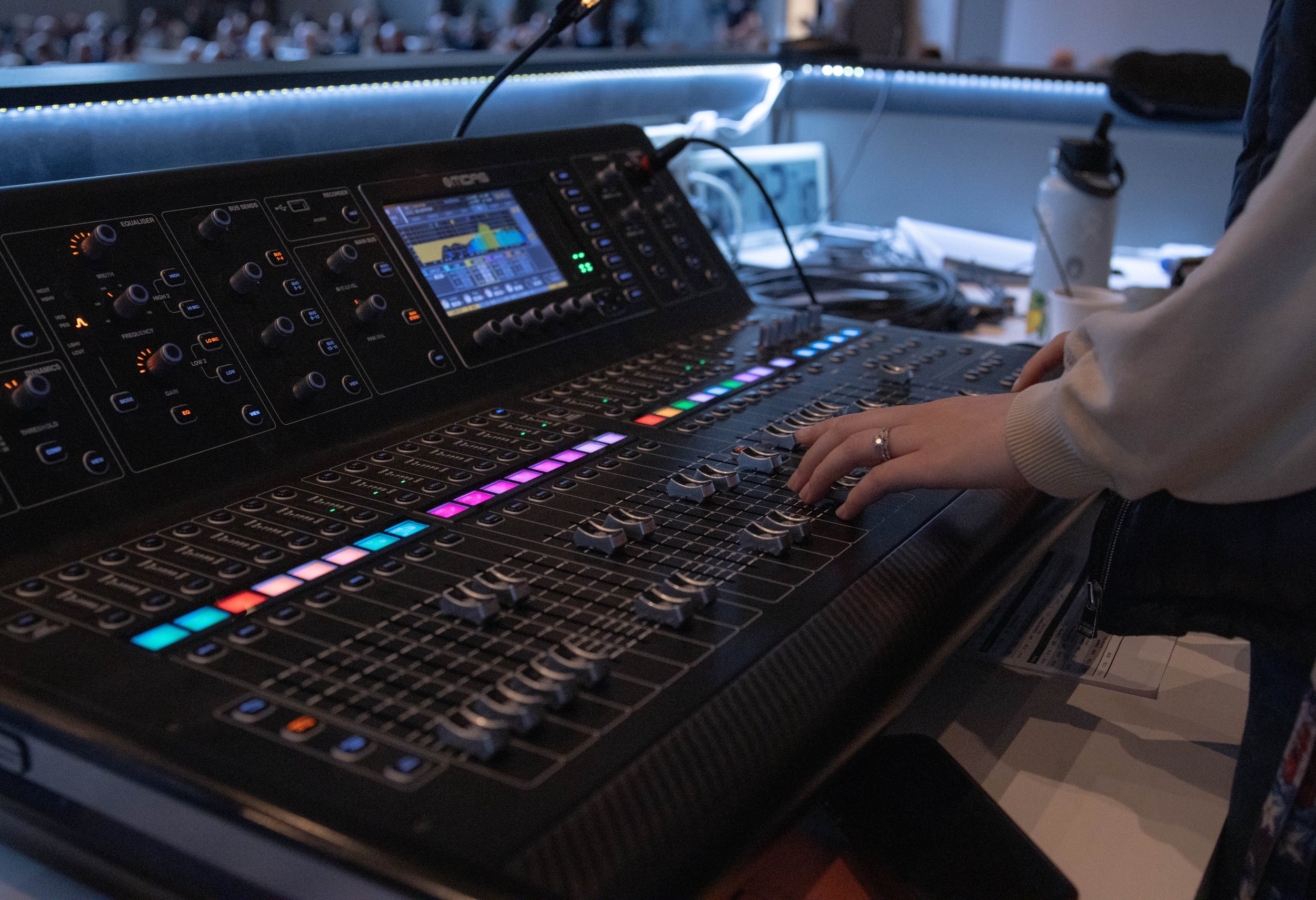
Check channel gain by navigating to designated channel on the M32 under: Setup > Preamps.
Ensure there are no issues with the source's output.
-
Description: IEM Console powered on but will not connect to Worship iPads, or not responding to audio adjustments.
Ensure correct "CCFW Start" scene is loaded on M32.
Restart full system (via power key).
Check M32C network connection. This is indicated by the color of the console's display. (Green/grey—connected, Red—disconnected)
-
Description: Usually caused by electric instruments, a noticeable hum or buzz signal coming from source.
Check all connections are fully secure. May help to reseat all connections.
If a DI is in line, check the ground lift is engaged. This will be a button or switch on the side of the DI.
Try replacing gear in the signal flow; usually this is the 1/4 in. or DI. Occasionally a buzz can be caused by an XLR.
Other resources
Slides
-
Description: One or more displays are not outputting as expected.
Ensure switcher and all projectors are powered on.
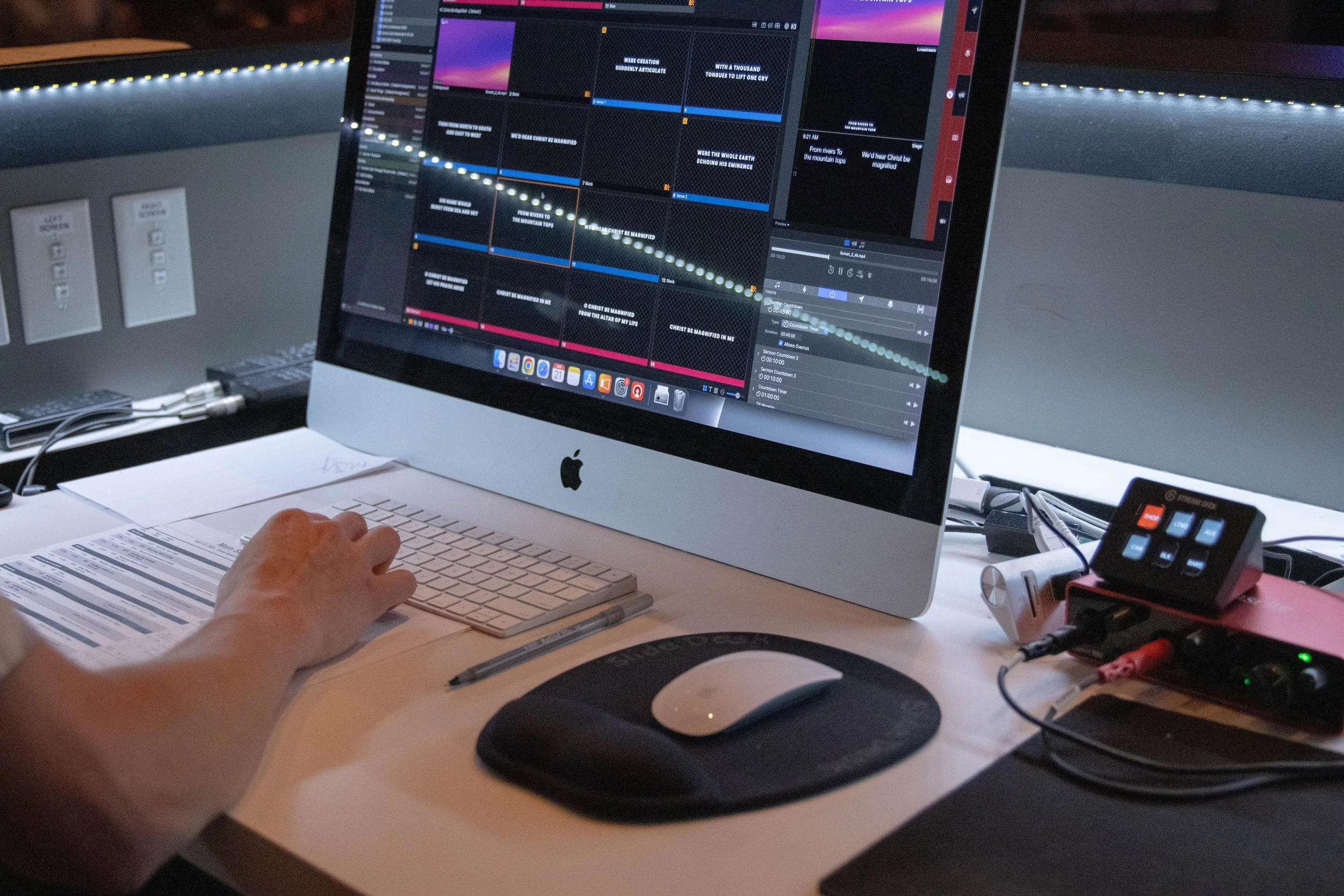
With the rest of the system powered, restart the Slides Mac.
Log in and allow adequate time for system to boot before launching Pro Presenter.
-
Description: Main outputs are normal, but the Stage Display (SD) or Livestream Feed is not outputting as expected.
Check if there is an output at all—an easy way to do this is to quit Pro Presenter and look for the wallpaper on the SD.
If no, but power has been turned on, check to see if there is flashing blue light on the SD projector itself - this indicates the lamp is burnt out and will need replaced.
If yes, run the countdown at the top of the service and clear all. This will reset all displays to the default settings for the service.
-
Description: The StreamDeck (switch controller) not functioning as expected or is not showing a connection.
Check USB connection to the Mac.
Ensure the Mac has a network connection (The StreamDeck talks to the switcher via the computer's network).
Open the Mac's "Launchpad" and run the "Companion" app. You can close the window but Companion needs to be running in the background.
If issues persist, check input source connections.
Other resources
Lighting
-
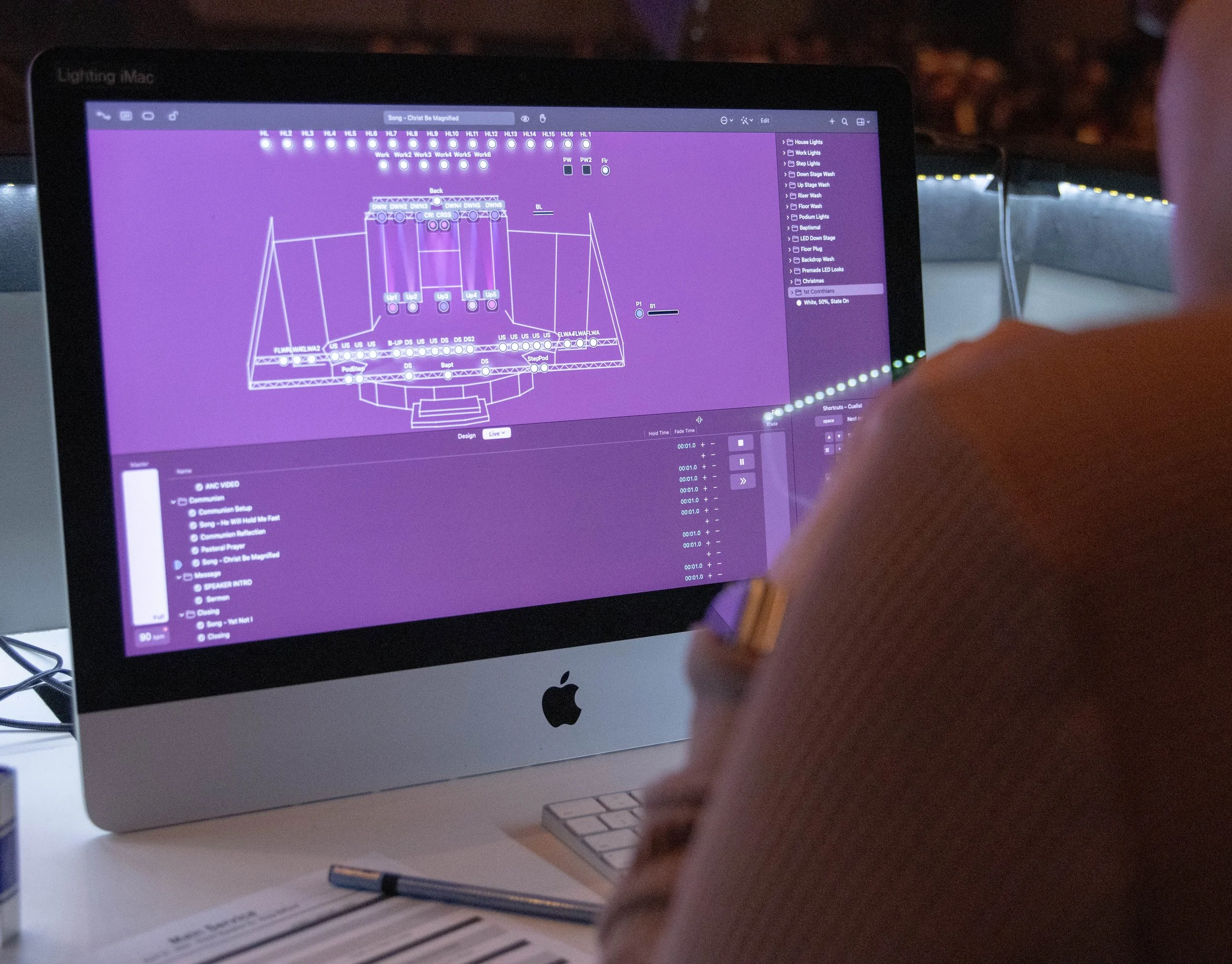
Description: Not seeing an output from uplight LEDs on back wall or set pieces.
Ensure all lights have power.
Check all DMX connection points on all LEDs.
Quit LightKey and reset DMX USB interface.
-
Description: When compared to the service order, the incorrect spotlight is preset into the program for a speaker's placement.
In LightKey, select the service element you'd like to edit, right click and select "Get Info."
Locate the existing light you'd like to be removed from the element contents. Highlight the element and delete it using the "delete" key.
Locate the light you'd like to use in the Preset Pallet on the right (i.e. Step Lights, Podium Lights). Select the percentage you want to use (between 50%–75%) and drag it onto the service element contents.
Run the service element again to test and collapse all groups in the Preset Pallet.
-
Description: Lighting Mac not releasing control to wall switch when expected.
Note: When Lighting Mac and LightKey are on, it will take control away from the wall switch, leaving it inoperable. Control needs to be released to the switch again to restore function. This is indicated by a colored light on the panel: Blue—switch in control, Purple—LightKey in control.
When closing LightKey, press the red "exit" button on the window to leave the project but do not quit LightKey.
In the corner of the Mac toolbar, select: LightKey > Reset DMX Output. Then quit the program. Control should then be released to the switch.
If this does not work, power down the Mac completely and wait about 30sec.
Other resources
Video Directing
-
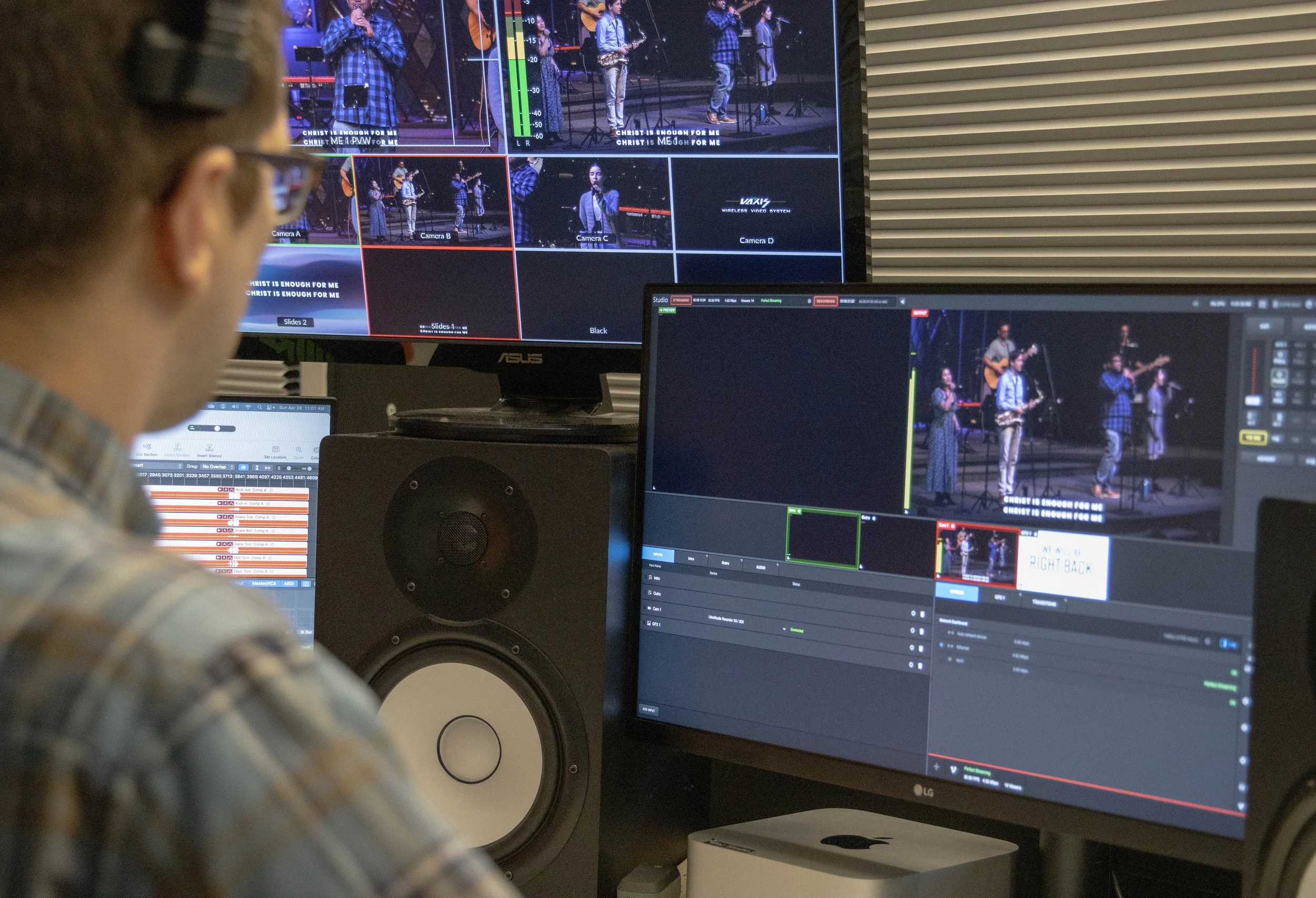
Description: Not hearing any audio output or only hearing limited channels. (Note: ensure Livestream Studio is open).
Start by quitting Logic Pro (cmd+Q). When prompted to save changes, select "Don't Save."
Ensure the switcher is turned on. Then, launch the CCFW Start project file. Once project is open, select necessary inputs (Using shift+click) and enable recording (R). You should now see signal on inputs.
Unlock Video iPad and open M32 Mix app. Unmute all DCA Groups and test mix.
If issue persists, restart full system and follow the steps above again.
-
Description: Livestream is showing unstable or skipping in the log. This is indicated by yellow or red messages while feed is live.
Run internet speed test by launching Ookla Speed Test. A minimum of 10mbp/s upload is required for a smooth operation.
If errors occur during first service, restart system and continue running test feed until the connection is stable.
If errors occur during second service, do not end the livestream but immediately contact Tyler Tyack and Kristy Henery to notify our online audience.
-
Description: Not receiving an audio or video feed into Livestream Studio. This will be indicated by a "no source connected" icon on the program output.
Quit Livestream Studio and relaunch—9/10 times this should fix the issue.
If the error persists, check and reseat the connections of the capture device.
This is a small grey (Black Magic) box that sits behind and to the right of the Mac's monitor, connected via Thunderbolt 3/USB-C and SDI.
Other resources
Video Switching
-
Description: Video iPad not connecting to stream console or seems to be connected to the wrong console.
Note: ensure that you have a designated Video iPad, as other devices are configured to control other consoles.
Check that the iPad is connected to the "CCFW Audio Wifi" network. Also check that the M32C is connected to the network; this will be indicated by the console's display. (Green/grey—connected, Red—disconnected)
Ensure the correct IP address is entered into the M32 Mix app.
Switch Console IP: 10.0.6.6
If issue persists notify the Video Director that the M32C needs to be restarted.
-
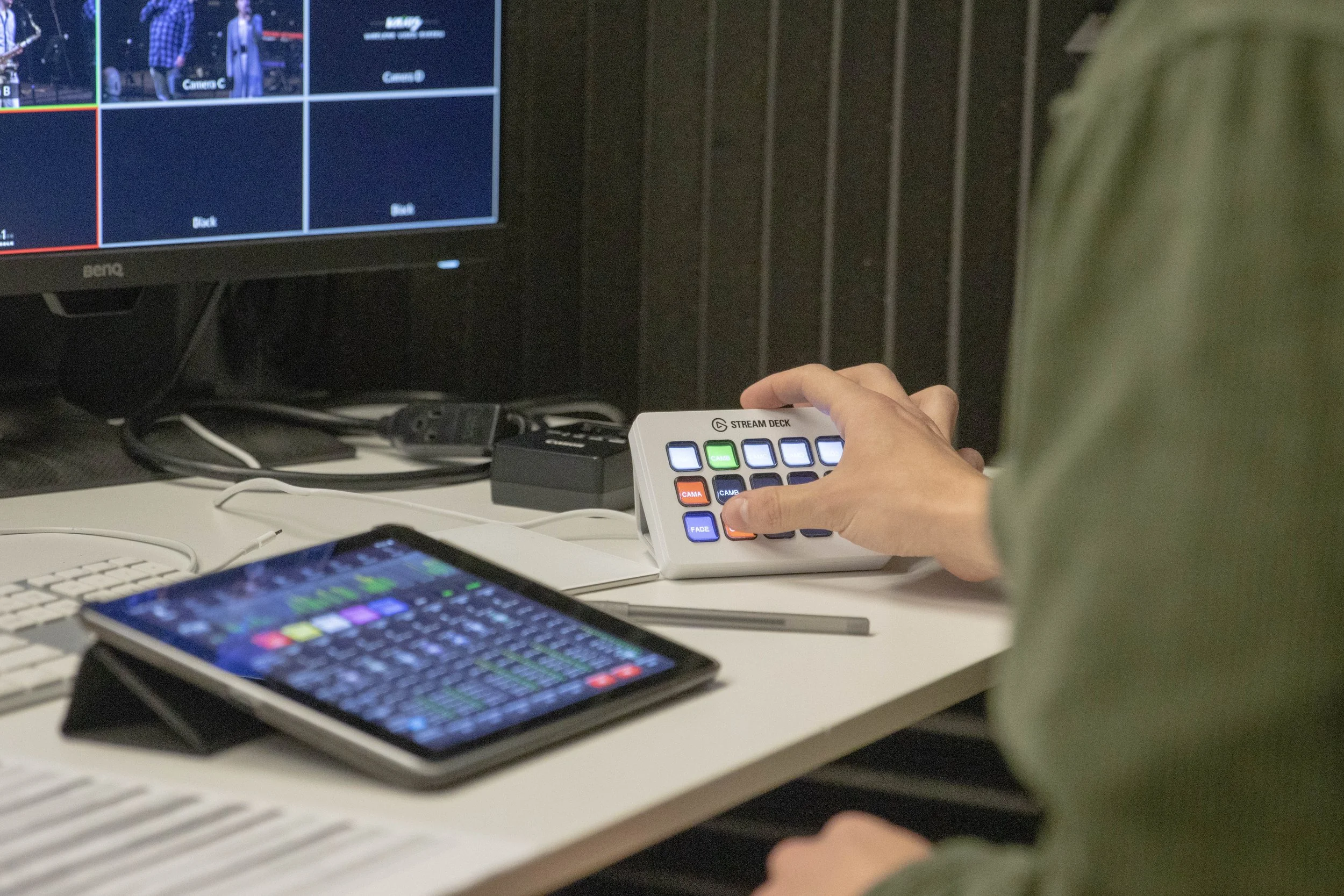
Description: StreamDeck not connected to switcher. This will usually look like the devices buttons being blank or grey.
On the Switching Mac, launch ATEM Control to test connect between Mac and switcher.
From the Mac Launchpad, run the "Companion" app.
If issue persists, restart the Switching Mac and switcher. You must notify the Video Director before restarting the switcher.
-
Description: The ultra key (overlay) for lyrics and sermon points is not displaying over the program feed as expected.
Check that you are receiving an input on "Slides 1" source. If not, contact the Slide Tech to see if they can troubleshoot a fix.
If you are receiving signal, press the "KEY 1" button on the StreamDeck and send the preview live. Then, press "Key 1" a second time to engage the ultra key for both sources.
Repeat this process in reverse to turn off the key as needed.
Other resources
Cameras
-
Description: Noticeable drifting or camera movement without touching the tripod.
Loosen the fastening knob on the far side of the tripod head, this will release the camera plate. Slide the plate forward and backward to find a good balance.
If you are unable to adjust the balance enough, remove the camera and use a camera key to slide the plate up or down the base of the camera.
Adjust the weight of the tripod using the dial on the back side of the head, between 0, 1, and 2.
-
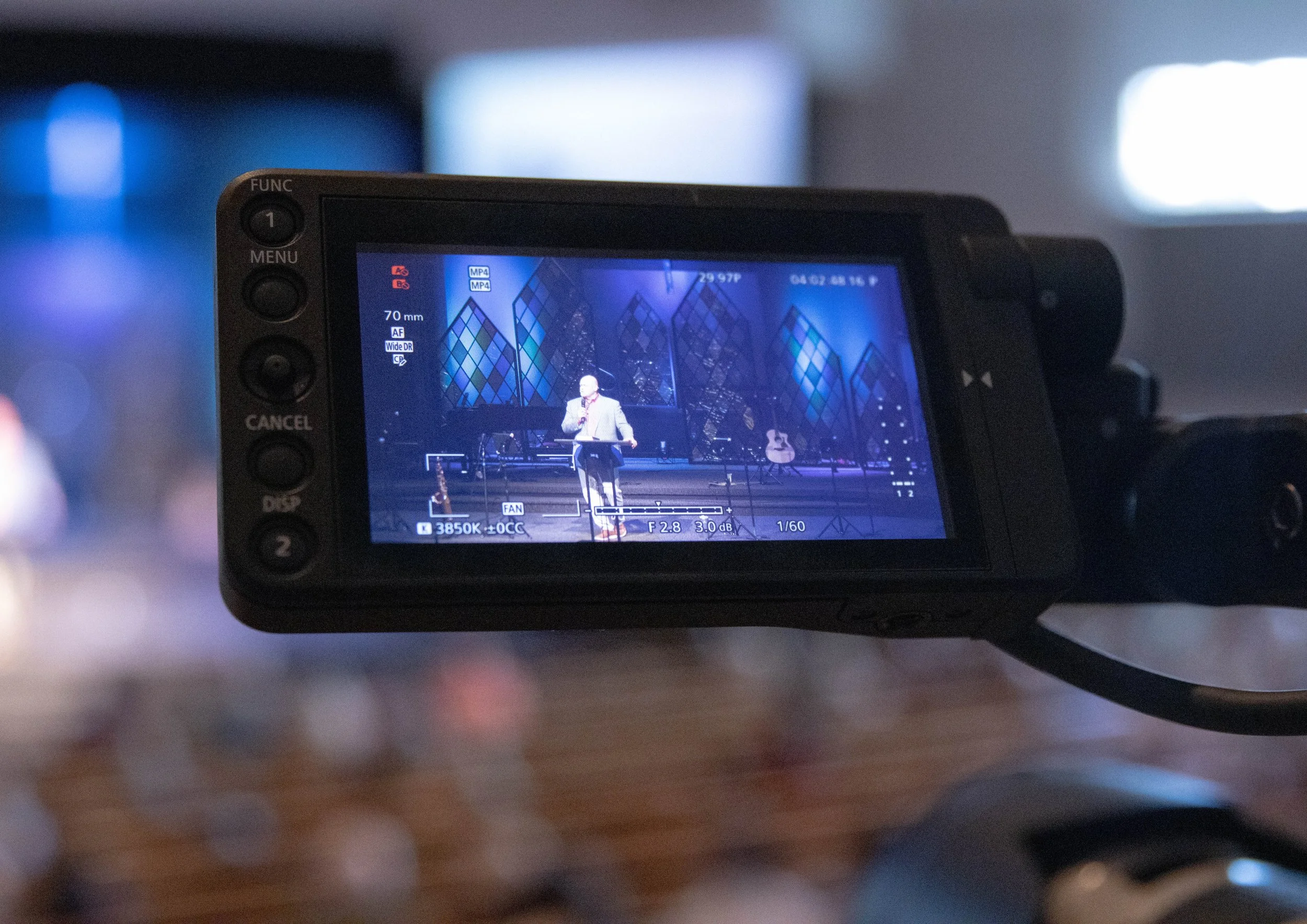
Description: Feed is either too bright or too dark and needs to be adjusted accordingly.
Cam B/C: Using the "Custom" button to the bottom left of the cameras display, select the gain setting (0.0db). Use the dial to the left of the button to adjust the exposure up or down.
Cam A: On the main button panel, select ISO. Use a joystick located on the back right of the camera, or to the right of the camera's display, to adjust the exposure up or down.
-
Description: How to strike camera gear at the end of a service.
Start by powering off the camera and unplugging all connections. This includes; power, SDI, and the remote (for Cam B/C).
Loosen the camera using the fastener on the back side of the tripod head and release the plate with the orange button on the opposite side. Don't let go of the camera!
Return the camera to its designated space in the Tech Room or hand it off to the Video Director.
Other resources
Have something to add to this page?
You can contribute to troubleshooting resources and solutions to this page by completing this form.